Do I need a PenPage account?
No. There is no PenPage account at all. Signing in with Google exists only to authorize access to your own Drive, and if you never sign in, everything stays in your browser and nothing leaves the device.
Most note apps sync by keeping your notes on their servers, so having the same notes on a laptop and a phone means handing the content to a company. PenPage works the other way around: it writes ordinary Markdown files into a folder in your own Google Drive, and your devices read from there. There is no PenPage account and no note database we control.
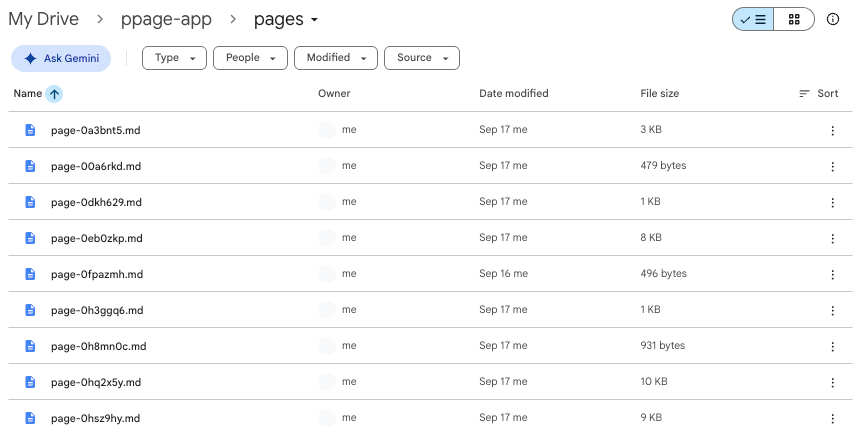
Turning on sync creates a normal, visible ppage-app folder in My Drive — not a
hidden application data area you cannot browse. Open it at drive.google.com and this is
what is inside:
pages/ — one Markdown file per note, as plain .md text.images/ — the images you pasted into notes, as real image files.sync.json — the metadata: note titles, folder structure, timestamps and content hashes.You can open, download, share or delete any of it without going through PenPage, and Drive's own version history applies to these files like any others. If you stop using PenPage tomorrow, your notes are still sitting in your Drive as Markdown, readable by anything.
The Google authorization uses the drive.file scope. That is the narrow one: it
grants an app access only to files that the app itself created. Your documents,
spreadsheets, photos and shared folders are not something PenPage promises not to look at —
the permission to read them is never granted in the first place. Google states the scope on
the consent screen, so you can check rather than take our word for it.
The honest trade-off: because the scope is that narrow, PenPage also cannot pick up a Markdown file you drop into the folder by hand. Bring existing notes in through import instead; once imported, they sync like everything else.
Sync is built around one metadata file rather than a per-note conversation with the Drive API, which is what keeps it quiet enough to run on a phone connection.
sync.json by its modified time. If it has not moved, the sync ends there.Sync runs on its own in four situations:
| Trigger | When |
|---|---|
| After you edit | 30 seconds after you stop typing, so a burst of edits becomes one sync |
| Periodic | Every 5 minutes while the app is open |
| Network restored | A few seconds after you come back online |
| Token refresh | Immediately, so a long session does not drift |
Per note, the newer timestamp wins. There is no three-way merge and no conflict copy — the older version of that note is replaced.
That is the right model for one person moving between a laptop, a desktop and a phone, which is what this is for. It is not a collaboration model, and it is not what you want if two people edit the same note, or if you edit the same note on two devices while both are offline. For anything that needs real merge resolution and review, keep the file in git instead — PenPage can link a local folder so the same note lives in both places.
The common case. Write on the desktop, read and amend on the phone, no install on either — PenPage runs in the browser and can be added to the home screen as an app.
Notes stored only in a browser's local storage are one cleared-site-data away from gone. Drive sync turns your existing Drive backup into note backup without adding another subscription, and the files stay in a format you can read without us.
Developers keep a personal CLAUDE.md, prompt snippets and command notes that
are not in any repository. Drive sync keeps one current copy on every machine you work
from. See editing CLAUDE.md in PenPage for that workflow.
| Cloud notes app | Drive desktop + a folder | Git repository | PenPage | |
|---|---|---|---|---|
| Notes stored on | Vendor servers | Your Drive | Your Git host | Your Drive |
| Account with a note vendor | Required | Not needed | Host account | Not needed |
| Files readable without the app | Export only | Yes | Yes | Yes |
| Software to install | An app | Drive for desktop | git | None, browser only |
| Usable on a phone | Yes | Awkward | Awkward | Yes |
| Conflict handling | Vendor's merge | Whole-file clobber | Real merges | Newest note wins |
| App can read your other files | n/a | Yes, all of Drive | Repo only | No, its own files only |
Git remains the better answer whenever changes need review or a genuine merge. Drive for desktop syncing a folder is fine on a computer and miserable on a phone. PenPage's niche is the middle: one person, several devices, no install, and files you can still read if the app disappears.
ppage-app folder and uploads what you already have.No. There is no PenPage account at all. Signing in with Google exists only to authorize access to your own Drive, and if you never sign in, everything stays in your browser and nothing leaves the device.
No. It requests the drive.file scope, which grants access only to files the app itself created. The consequence is symmetrical: PenPage also cannot see a Markdown file you place in the folder manually, so bring existing notes in through import.
Your notes on the device are untouched, because local storage is the primary copy and Drive is the mirror. The next sync recreates the folder from whichever device syncs first, so sync from your most up-to-date device before opening the others.
The note with the newer modification time wins and replaces the other. There is no merge and no conflict copy. This suits one person across several devices; it is not a collaboration feature.
Markdown is text, so the notes themselves are negligible — thousands of notes stay well under a few megabytes. Images dominate, and PenPage compresses them before upload.
Yes. Editing is local-first and never waits on the network, so you can work offline for as long as you like. PenPage syncs a few seconds after the connection comes back.
The editor works immediately with no account. Turn on Drive sync later, only if and when you want your notes on a second device.